Every app says AI in 2026. pinakea was designed for it from the start.

It ingests and processes what you have collected across apps and formats. It finds things by what they mean. It answers questions and shows where the answer came from.

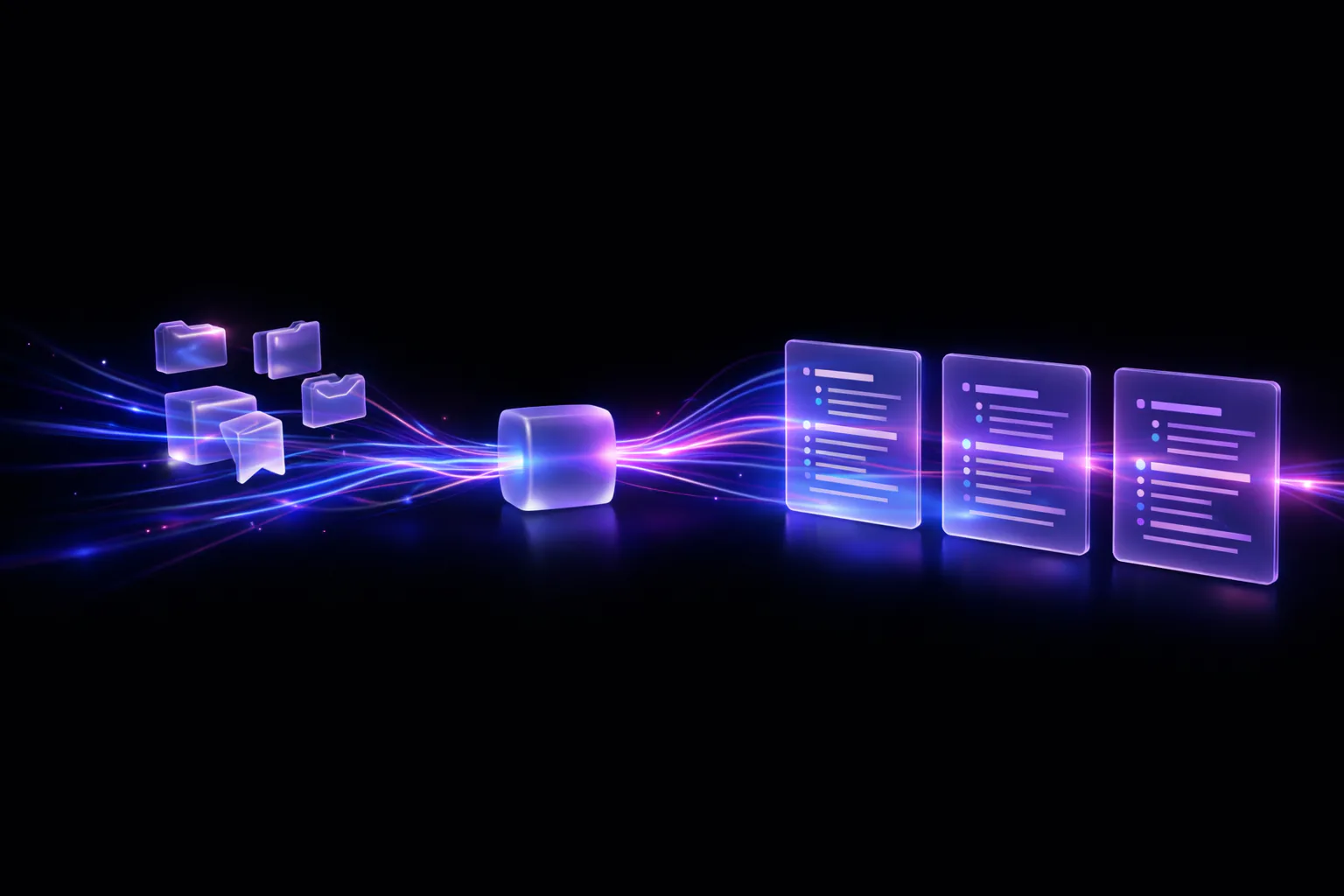
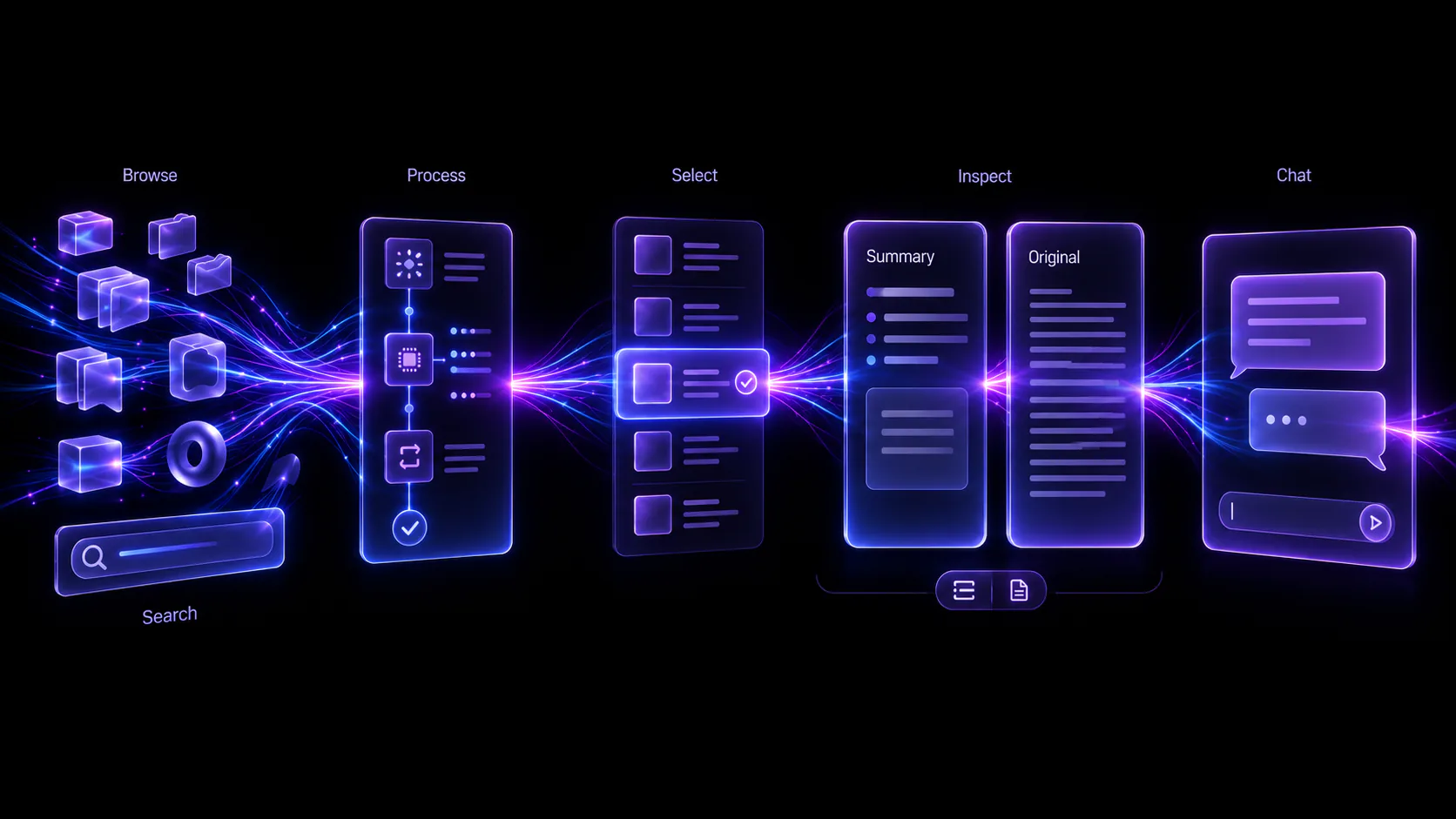
pinakea workflow from browsing and processing saved material through selection, inspection, and chat.

How It Works

From capture to answers

Captured items in the pinakea timeline

Capture

Capture From Everywhere (Without Changing Your Workflow)

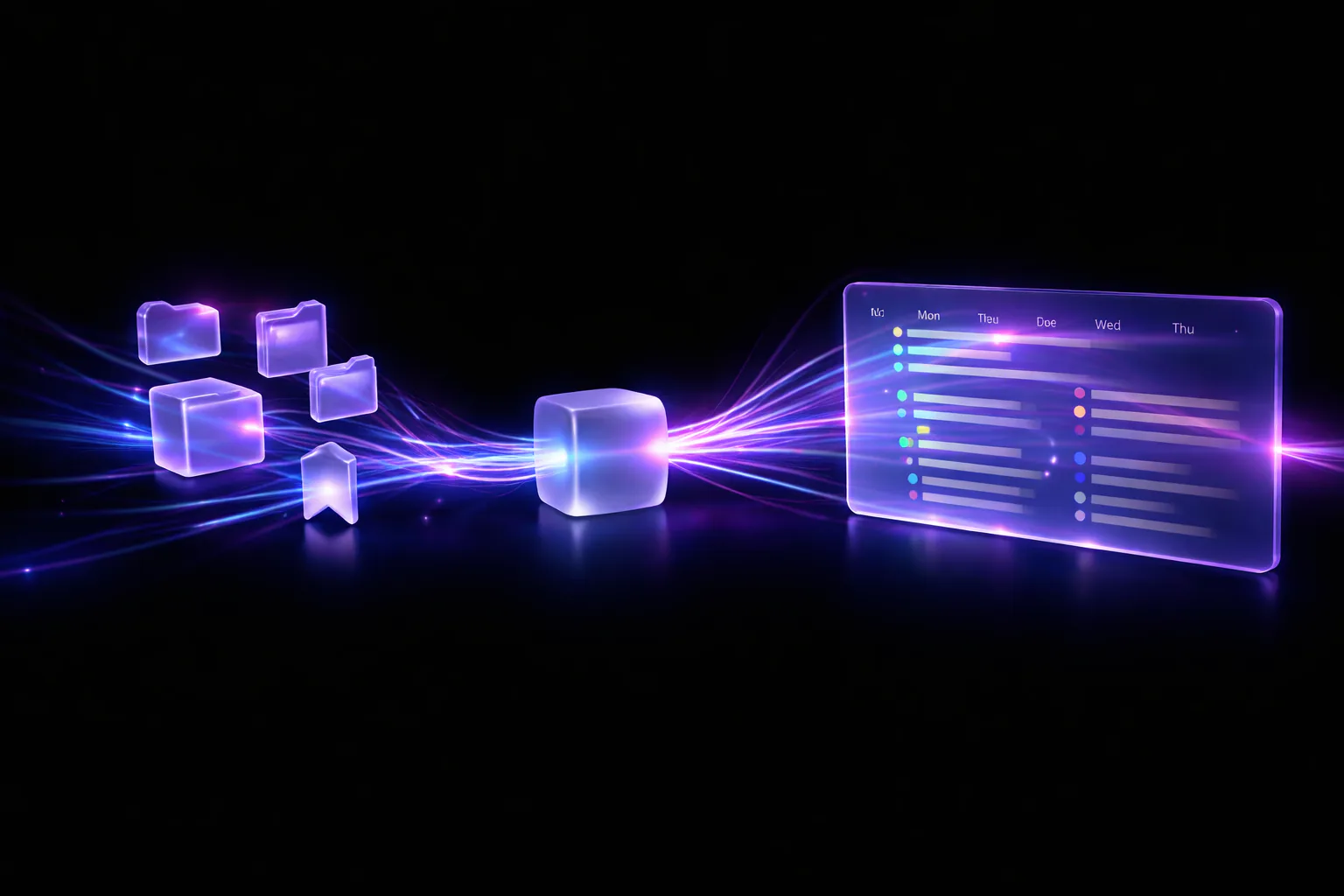
pinakea brings your information into a single timeline without moving your originals.

  • Files and folders index documents where they already live: text, Markdown, PDFs, images, and HTML.

  • Browser clips for Chrome, Chromium, and Safari save any page in one click or shortcut, convert it to clean Markdown, and deduplicate by canonical URL.

  • Apple Mail indexes your local archive without OAuth, with account and date-range controls.

  • Obsidian vaults come in Markdown-first, with frontmatter support and deep links back to obsidian://.

  • Feedbin stars import full text and stay in sync.

Everything lands in one place: a chronological timeline you can browse by day, tag, or source.

AI pipeline processing stages in pinakea

Enrichment

A Sophisticated AI Pipeline (That Runs Automatically)

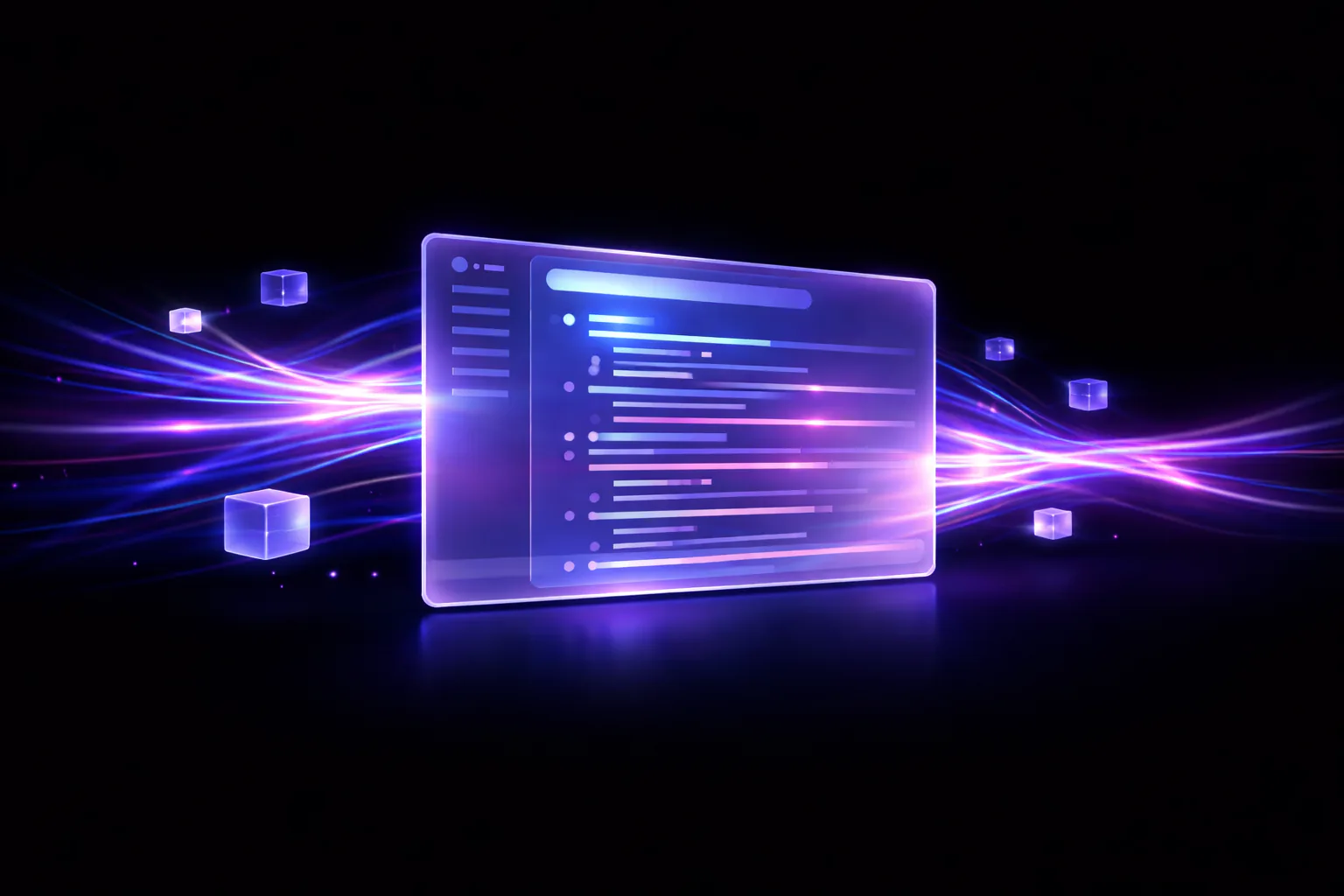
Every item that enters pinakea is enriched in the background.

  • Clean extraction for HTML, PDFs, scanned PDFs, and images.

  • YouTube transcripts when you clip videos, so spoken content becomes searchable.

  • Chunking and embeddings so meaning, not just keywords, becomes searchable.

  • Micro summaries for fast scanning.

  • AI titles and AI tags generated from the content itself.

The result is simple: you stop filing things by hand, and your knowledge organizes itself.

Micro and long summaries in pinakea

Understanding

Summaries At Every Level

Scan fast when you’re busy. Go deep when you need detail.

  • Micro summaries are generated automatically for every item.

  • Long summaries can be generated on demand for a single item, a day, or a daypart.

  • Citations let you trace every important claim back to the source.

Search filters and query language in pinakea

Retrieval

Search That Actually Finds Things

pinakea is built for libraries with thousands, or tens of thousands, of items.

Choose the right tool for the job.

  • Titles when you remember the name, including AI-generated titles.

  • Titles, tags, and summaries when you want the important fields fast.

  • Titles, tags, and full content when you need exhaustive search.

  • Semantic search for “what was that thing about…” moments.

Chat answers with citations in pinakea

Reasoning

Chat With All Your Knowledge (With Citations)

Sometimes you don’t want to browse. You want to ask.

  • Chat with all items in your library.

  • Focus the scope to a selection, day, daypart, tag, or current search results.

  • Citations by default with clickable [#] references back to the source.

  • Open original jumps from a citation into Obsidian, Finder, Mail, or the web.

  • Saved chat history keeps conversations reloadable and renameable.

This is not a generic chatbot. It is grounded in your sources.

Two AI Modes

Online Mode is the recommended path

Mixed Mode remains available for smaller Sets when local automatic item processing matters more than speed and output quality. Larger or growing Sets should use Online Mode.

Online mode configuration for pinakea

Two AI Modes

Online Mode (Recommended)

Online mode runs automatic item processing through OpenRouter and is the recommended default.

  • Best-of-class embeddings and pipeline models such as Qwen3 Embedding 8B and Gemini 2.5 Flash Lite.

  • Parallel processing for faster initial indexing.

  • Recommended for larger Sets and Sets that may grow beyond 1,000 items.

Read why Online Mode is recommended.

Mixed mode setup and local model usage in pinakea

Mixed Mode (Small Sets, Local Processing)

Mixed mode keeps automatic item processing on your Mac while still using OpenRouter for chat and long summaries. It is for smaller Sets when avoiding OpenRouter cost for those automatic stages matters more than speed and output quality.

  • Local embeddings, micro summaries, titles, and tags for automatic item processing.

  • Remote chat and long summaries when you want the strongest answers.

  • Larger Sets can take hours or days locally and keep your Mac busy.

In both modes, pinakea tracks remote spend so there are no surprises.

Integrations

Extensions and integrations that disappear into your workflow

pinakea is built to meet you where you already work instead of forcing another system on top.

Chrome and Safari browser clipper for pinakea

Integrations

Chrome + Safari Clipper

  • One click, shortcut, or context menu to save into pinakea.

  • Clean Markdown extraction with strong readability conversion.

  • Offline queueing so clipped items import automatically when pinakea is running.

  • Smart deduplication by canonical URL.

  • Markdown export and import for transfer and backup workflows.

Obsidian companion plugin actions in pinakea

Obsidian Companion Plugin

Optional, but powerful.

  • Open in pinakea App from the current note.

  • Chat in pinakea App about the current note.

  • Status indicators show whether pinakea can currently see your vault.

  • Everything runs locally, with no network required.

Raycast extension commands for pinakea

Raycast Extension

Fast access without changing contexts.

  • Search Items with live preview and quick open actions.

  • Recent Items and Recent Starred Items for fast re-entry.

  • Clip Item to send a URL into pinakea from anywhere.

  • Chat with All Items and Daily Summary commands.

  • Local and Remote connection modes for desktop and Tailscale setups.

Server browser access timeline and chat view for pinakea

Server: Browser Access

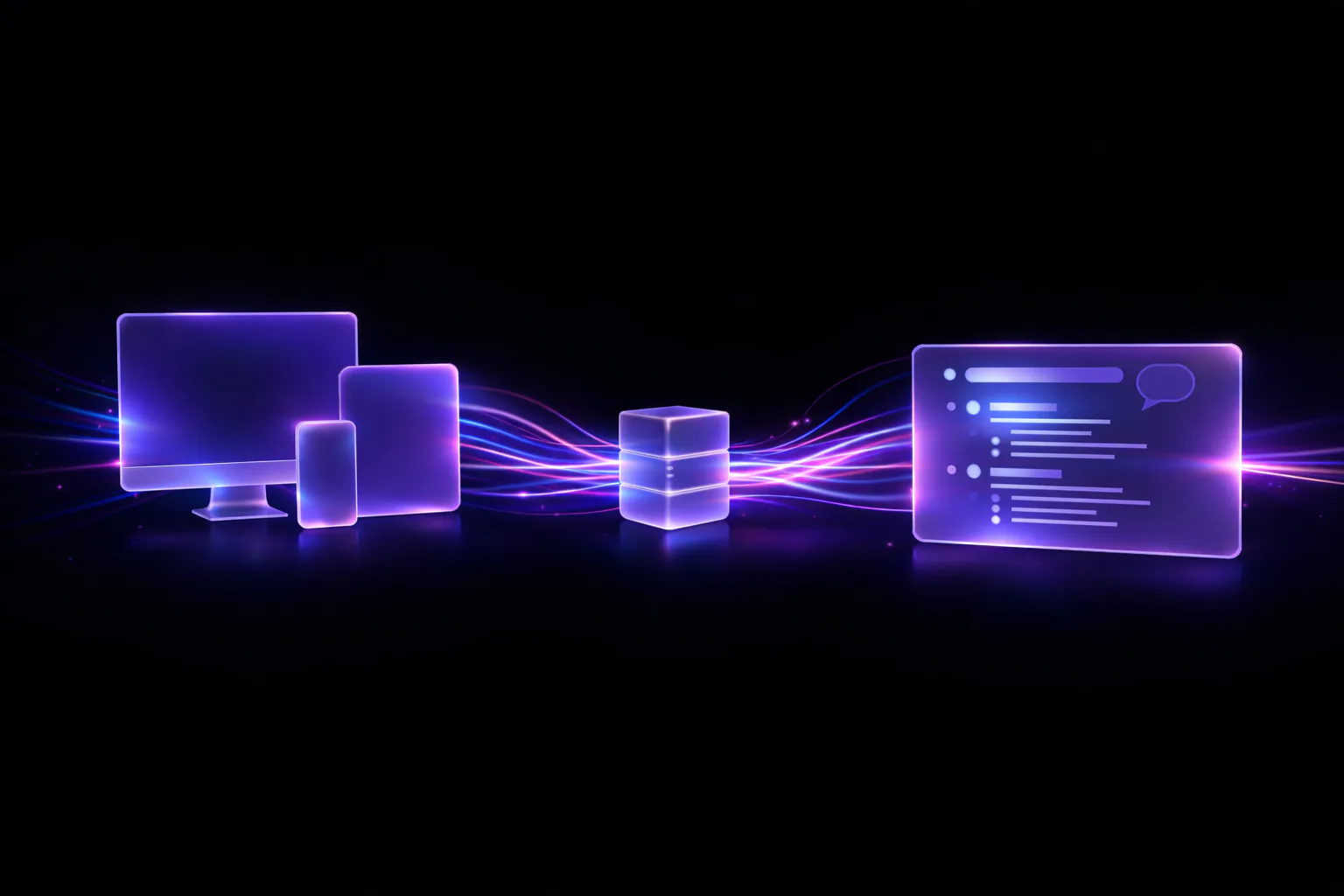
Open your pinakea library in a browser on another device when that is more convenient than sitting at your Mac.

  • Browse your timeline and open item pages.
  • Run search, including semantic search.
  • Use chat with streaming answers and clickable citations.
  • Clip URLs from mobile when you do not have a browser extension installed.
  • Works well on phones, tablets, laptops, and Raycast remote mode.

Security model: off by default, local-network only when enabled, password protected, with optional remote access via Tailscale.

pinakea library connected to Claude and other MCP apps

Use pinakea Inside Claude and Other MCP Apps

If you already work in Claude Desktop, Cursor, Codex, or another MCP-capable client, pinakea becomes part of that workspace instead of asking you to switch tools.

  • Use Claude to search, read, and chat across the Set currently selected in pinakea.

  • Let Claude turn what it finds into structured output in tools like Notion, Workflowy, Heptabase, or Tana.

  • Setup stays simple: copy the generated MCP config from Settings → Server and paste it into your MCP client.

  • ChatGPT is out of scope because it requires a remote HTTP/OAuth integration instead of a local MCP connection.

Native macOS timeline performance in pinakea

Performance

Native macOS Performance

pinakea is a native macOS app built for large libraries.

  • Smooth scrolling and responsive UI even with thousands of items.
  • Search designed to stay fast and deliberate instead of bogging down into sluggish live filtering.

  • Background processing that does not block your work.

Your data, your control

  • Your originals stay where they are. pinakea indexes them instead of taking them over.

  • There is no pinakea server that stores your content.

  • Cloud AI usage is bring your own key via OpenRouter, with spending limits you control.

  • Your content goes directly from your Mac to the provider over encrypted connections. We never see it.